If you have used any analytics tool in the past few years, you have probably heard the term “event-based analytics.” It replaced the old pageview model — and for good reasons. This guide explains what event-based analytics actually is, why the shift happened, and what it means for how you track and understand your website.
- Event-based analytics tracks every user interaction as a discrete event (click, scroll, purchase, page view) instead of counting pageviews and sessions
- The pageview model broke down because of single-page apps, mobile usage, and cross-device journeys
- In GA4, even a pageview is an event —
page_viewis just one event type among many - Events carry parameters (metadata) that describe the context: what was clicked, which product was purchased, how far the user scrolled
- Start with 15–20 meaningful events, not 200. Track what matters for your business decisions.
What Is Event-Based Analytics?
Event-based analytics is a way of collecting data where every user interaction is recorded as a separate event. An event is any action a user takes on your site: viewing a page, clicking a button, submitting a form, watching a video, scrolling to a certain point, or completing a purchase.
Each event has a name and a set of parameters that describe it. For example:
Event name: purchase
Parameters:
  transaction_id: "TXN-4821"
  value: 89.99
  currency: "USD"
  items: [{item_name: "Analytics Course", item_id: "SKU-101"}]
This is different from the old approach, where the primary unit of measurement was a pageview — a record that someone loaded a URL. In event-based analytics, a pageview is still tracked, but it is just one type of event among many.
In Google Analytics 4, the pageview is literally an event called page_view. There is no separate “pageview” concept anymore. Everything — pageviews, clicks, scrolls, purchases — follows the same event + parameters structure.
How the Pageview Model Worked
Before event-based analytics, most tools (including Google’s Universal Analytics) used a session-based, pageview-centric model. Here is how it worked:
- A visitor arrives on your site. A session starts.
- Every page they load generates a pageview hit.
- The session ends after 30 minutes of inactivity.
- Metrics like bounce rate, pages per session, and session duration are calculated from this data.
This worked fine when websites were collections of static HTML pages. Every meaningful action required loading a new URL. But three forces broke this model:
1. Single-Page Applications
Modern web applications (Gmail, Trello, Notion, many e-commerce sites) load once and update content dynamically without full page reloads. In a pageview model, a user who spends 45 minutes in a web app registers as one pageview with zero interactions. That is useless data.
2. Mobile and Cross-Device Usage
Users switch between phone, tablet, and desktop. A session-based model tied to browser cookies cannot connect these journeys. The same person looks like three different visitors.
3. Interactions Beyond Page Loads
The most important user actions — clicking a CTA, watching a video, adding to cart, scrolling past the fold — do not generate new page loads. The pageview model could not measure what actually mattered without bolting on custom event tracking as an afterthought.
Why Everything Moved to Events
Google’s sunset of Universal Analytics in 2023 was the most visible signal, but the shift had been building for years. Amplitude, Mixpanel, and Segment built their entire products around event-based data models. When Google launched GA4, it adopted the same approach.
The reasons are practical:
- Flexibility. You can track any interaction as an event, with any parameters you define. No more shoehorning business data into predefined categories and actions.
- User-centric measurement. Event-based models can stitch user journeys across sessions and devices, focusing on what a person does over time — not just within a single visit.
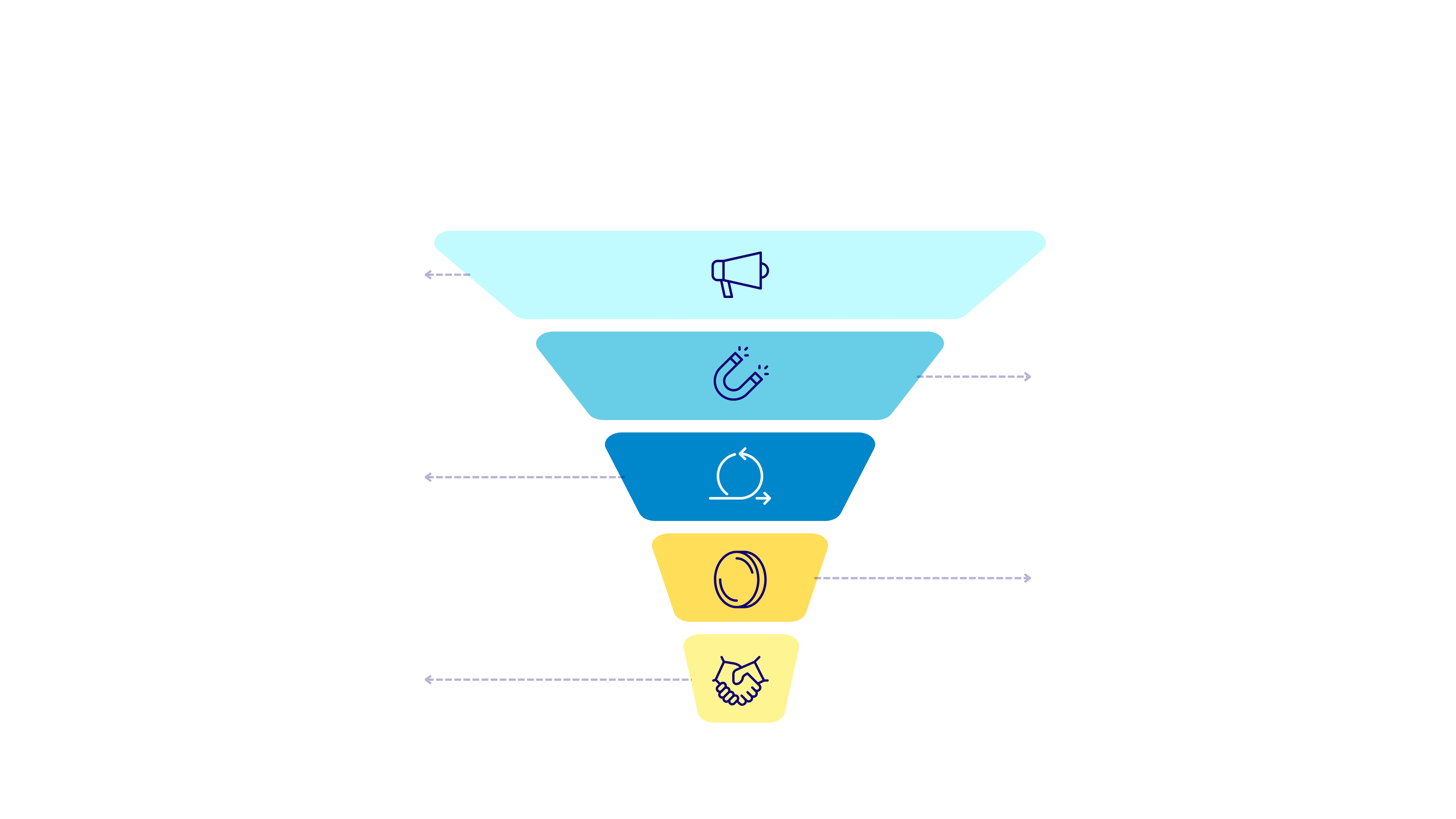
- Better funnel analysis. When every action is an event, you can build funnels from any sequence of actions. In the pageview model, funnels were limited to URL-based steps.
- Future-proofing. Event-based models work the same way for websites, mobile apps, and connected devices. One data model across all platforms.
Event-Based vs. Pageview-Based: Side by Side
| Aspect | Pageview-based (Universal Analytics) | Event-based (GA4, Mixpanel, etc.) |
|---|---|---|
| Primary data unit | Pageview (URL load) | Event (any interaction) |
| Data structure | Category → Action → Label → Value | Event name → Parameters (key-value pairs) |
| Pageview handling | Separate hit type | Just another event (page_view) |
| Session definition | 30-min timeout, central concept | Still exists, but less central |
| Cross-device tracking | Limited (User ID required, hard to implement) | Built-in (Google Signals, User ID) |
| Funnel building | URL-based steps only | Any event sequence |
| Custom data | Custom dimensions/metrics (limited slots) | Event parameters (flexible, unlimited naming) |
| SPA support | Requires manual workarounds | Native — events fire on interactions, not page loads |
| Privacy/consent | All-or-nothing tracking | Consent Mode with behavioral modeling |
| Learning curve | Lower (familiar concepts) | Higher (requires rethinking what you measure) |
How Events Work in Practice

Every event has two parts: a name and parameters. The name describes what happened. The parameters describe the context.
Sending Events with gtag.js
If you use GA4 directly (without a tag manager), events are sent with the gtag() function:
// Track a button click
gtag('event', 'cta_click', {
  button_text: 'Start Free Trial',
  button_location: 'hero_section',
  page_path: '/pricing'
});

// Track a video play
gtag('event', 'video_play', {
  video_title: 'GA4 Setup Tutorial',
  video_duration: 340,
  video_provider: 'youtube'
});
Sending Events via the Data Layer (GTM)
If you use Google Tag Manager, events go through the data layer first:
// Push event to data layer — GTM picks it up
dataLayer.push({
  event: 'form_submit',
  form_name: 'contact',
  form_location: 'footer'
});

// Push e-commerce event
dataLayer.push({
  event: 'add_to_cart',
  ecommerce: {
    currency: 'USD',
    value: 29.99,
    items: [{
      item_id: 'SKU-205',
      item_name: 'Analytics Handbook',
      quantity: 1
    }]
  }
});
For a deeper dive into how the data layer connects your website to GTM, read our guide on understanding the data layer in Google Tag Manager.
GA4’s Four Event Types
GA4 organizes events into four categories:
| Type | What it is | Examples | Configuration needed |
|---|---|---|---|
| Automatically collected | Events GA4 sends by default | first_visit, session_start, user_engagement | None — always active |
| Enhanced measurement | Optional events GA4 can track without code | page_view, scroll, click (outbound), file_download | Toggle on/off in GA4 settings |
| Recommended | Events Google suggests for specific industries | purchase, add_to_cart, sign_up, login | Manual implementation required |
| Custom | Events you define for your specific needs | cta_click, pricing_toggle, quiz_complete | Manual implementation required |
Use Google’s recommended event names when they fit your use case. GA4 has built-in reports and features (like e-commerce reports) that only work with the standard event names. If you invent your own name for a purchase event, you lose those built-in features.
Building Your Event Tracking Plan
The biggest mistake in event-based analytics is tracking everything. More events does not mean more insight. It means more noise, harder debugging, and messy data.
What to Track
Track interactions that connect to business decisions:
- Conversions — purchases, form submissions, signups, downloads
- Micro-conversions — add to cart, start checkout, pricing page view
- Engagement signals — scroll depth, video completion, time on key pages
- Navigation patterns — internal search, menu clicks, CTA interactions
- Error states — 404 pages, failed form submissions, JavaScript errors
What NOT to Track
- Every mouse hover or mouse movement
- Every single link click on every page
- Generic events without parameters (a “click” event with no context is useless)
- Events you will never look at or act on
Event Naming Conventions
Consistent naming prevents chaos. Here is a convention you can adopt:
| Rule | Good example | Bad example |
|---|---|---|
| Use snake_case | form_submit | formSubmit, Form Submit |
| Use verb + object | video_play, cta_click | video, CTA |
| Be specific, not generic | newsletter_signup | submit |
| Use consistent prefixes for groups | checkout_start, checkout_complete | begin_checkout, purchase_done |
| Include location in parameters, not names | cta_click + param location: "hero" | hero_cta_click, footer_cta_click |
Once you name an event and start collecting data, changing the name means losing historical comparisons. Get your naming right before you start tracking in production. Document your event names, parameters, and their expected values in a tracking plan spreadsheet.
Event-Based Analytics and Privacy
Event-based analytics interacts with privacy regulations the same way pageview tracking does — through cookies and consent. But there is one important difference: modern event-based platforms like GA4 have built-in support for consent management.
With Google Consent Mode v2:
- Consent granted: All events fire normally with full tracking. Cookies are set, user journeys are stitched across sessions.
- Consent denied: Events still fire, but without cookies. GA4 sends “cookieless pings” and uses statistical modeling to estimate the missing data.
- No consent mode: If you do not implement consent management at all, events from users who decline cookies are lost entirely.
If you are implementing consent-based tracking, our guide on GDPR-compliant cookie consent setup covers the technical implementation step by step.
Common Mistakes When Moving to Events
- Tracking too many events. Start with 15–20 events that map to business questions. You can always add more later. Starting with 200 events means 180 of them will never be looked at.
- Inconsistent naming. If one developer sends
formSubmitand another sendsform_submit, you have two events tracking the same thing. Agree on conventions before implementation. - Not setting up conversions. In GA4, no event is a conversion by default (except
purchase). You need to manually mark key events as conversions in the admin settings. - Ignoring DebugView. GA4’s DebugView shows events in real-time as they fire. If you skip verification, you will not catch misconfigured events until weeks later when someone looks at a report.
- Treating GA4 like Universal Analytics. Bounce rate, session duration, and pages per session work differently in GA4. If you expect the same numbers, you will think something is broken when it is not.
- Sending events without parameters. An event called
clickwith no parameters tells you nothing. Always include context: what was clicked, where, and on which page.
Tools That Use Event-Based Analytics

Nearly all modern analytics platforms use an event-based model. Here is how they compare:
| Tool | Best for | Event model | Free tier |
|---|---|---|---|
| Google Analytics 4 | Websites, especially with Google Ads | Event + parameters | Yes |
| Mixpanel | Product analytics for SaaS | Event + properties | Yes (up to 20M events/mo) |
| Amplitude | Product-led growth companies | Event + properties + user properties | Yes (up to 50M events/mo) |
| PostHog | Self-hosted product analytics | Event + properties (autocapture available) | Yes (open source) |
| Piwik PRO | Privacy-focused enterprises | Hybrid (session + event) | No free plan (paid only) |
| Plausible | Simple privacy-first tracking | Simplified event model (custom goals) | No (paid only) |
Getting Started: Your First Events
If you are new to event-based analytics, here is how to start without getting overwhelmed:
- List your website’s 3–5 most important actions. What do you want visitors to do? Buy? Sign up? Contact you? Read articles? These become your core events.
- Check what GA4 tracks automatically. Enhanced measurement already covers page views, scrolls, outbound clicks, site search, video engagement, and file downloads. You may already have useful data without writing any code.
- Add 5–10 custom events for actions specific to your business. Use the naming convention table above.
- Verify in DebugView. Open GA4 → Admin → DebugView. Trigger each event on your site and confirm it appears with the correct parameters.
- Mark key events as conversions. In GA4 → Admin → Events, toggle the “Mark as conversion” switch for your most important events.
For practical implementation examples, see our guides on tracking form submissions and e-commerce tracking with GTM. Both show event-based tracking in action with real code.
Wrap-Up
Event-based analytics is not a trend — it is the standard. The pageview model served the web well for two decades, but it could not keep up with modern websites, mobile apps, and privacy requirements.
The shift is actually simpler than it seems:
- Every user interaction is an event
- Every event carries parameters that describe the context
- You decide which events matter for your business
- You verify they work, then analyze the data
Start with what matters. Track it correctly. Verify it works. Expand from there.
For next steps, see how to set up a tag manager to control your events, learn which metrics actually matter, and understand what a conversion is and how to track it.
Frequently Asked Questions
Is event-based analytics harder to set up than pageview tracking?
It requires more upfront planning because you need to decide what to track and how to name your events. But the actual implementation — sending events via gtag.js or a tag manager — is straightforward. The payoff is much richer data about how people actually use your site.
Can I still see pageview data in GA4?
Yes. GA4 automatically tracks a page_view event for every page load. You can see page-level data in the Pages and Screens report. The difference is that pageviews are now events, not a separate concept.
How many events should I track?
Start with 15–20 events tied to your business goals. GA4 supports up to 500 distinct event names per property, but more is not better. Every event you add increases complexity. Only track what you will actually analyze and act on.
Do I need a tag manager for event-based analytics?
No, but it is strongly recommended. A tag manager like GTM gives you control over which events fire, under what conditions, and with what parameters — all without changing your website code. It also makes debugging and updating much easier.
What happens to my old Universal Analytics data?
Universal Analytics stopped processing data in July 2023. Historical data was accessible for a limited period after that. If you did not export your UA data, it is no longer available. GA4 data starts fresh — it does not import historical UA data because the data models are fundamentally different.
Keep reading: how to track scroll depth in GA4 and how to track outbound link clicks in GA4.
Vendor tiers reviewed 13 August 2026.

Need Help With Your Analytics Setup?
Whether you are implementing GA4, setting up consent management, or building custom tracking solutions, I can help you get it right the first time.