
This guide covers one of the most fundamental concepts in web analytics: conversions. If you manage a website or run marketing campaigns, understanding what a conversion is — and how to track it correctly — is non-negotiable. Without proper conversion tracking, you are making decisions based on assumptions rather than data.
If you are new to web analytics, this guide will give you a solid foundation. If you already have experience, you will find the diagnostic and troubleshooting sections most useful.
- A conversion is any measurable action a user takes that aligns with your business goals — not just purchases
- Macro conversions are primary goals (sales, signups). Micro conversions are smaller steps that indicate intent (add-to-cart, video views)
- Conversion tracking works through: user action → event fires → analytics platform records → report displays
- Your conversion rate = (conversions / sessions) × 100. Segment it by source, device, and page for actionable insights
- Most tracking problems come from duplicate events, missing triggers, or broken tag configurations — not platform bugs
What Is a Conversion?
A conversion is a completed action on your website that has value to your business. Most people hear “conversion” and think of a purchase. While purchases are conversions, they are not the only type. A conversion is any action you define as a goal:
- Completing a purchase
- Submitting a contact form
- Signing up for a newsletter
- Downloading a PDF or resource
- Creating an account or starting a free trial
- Clicking a “Call Now” button
- Watching a product video to completion
In GA4, conversions are called “key events.” Google renamed them in early 2024. The concept is the same — you mark specific events as important. If you are using event-based analytics, a conversion is simply an event you have flagged as particularly important.
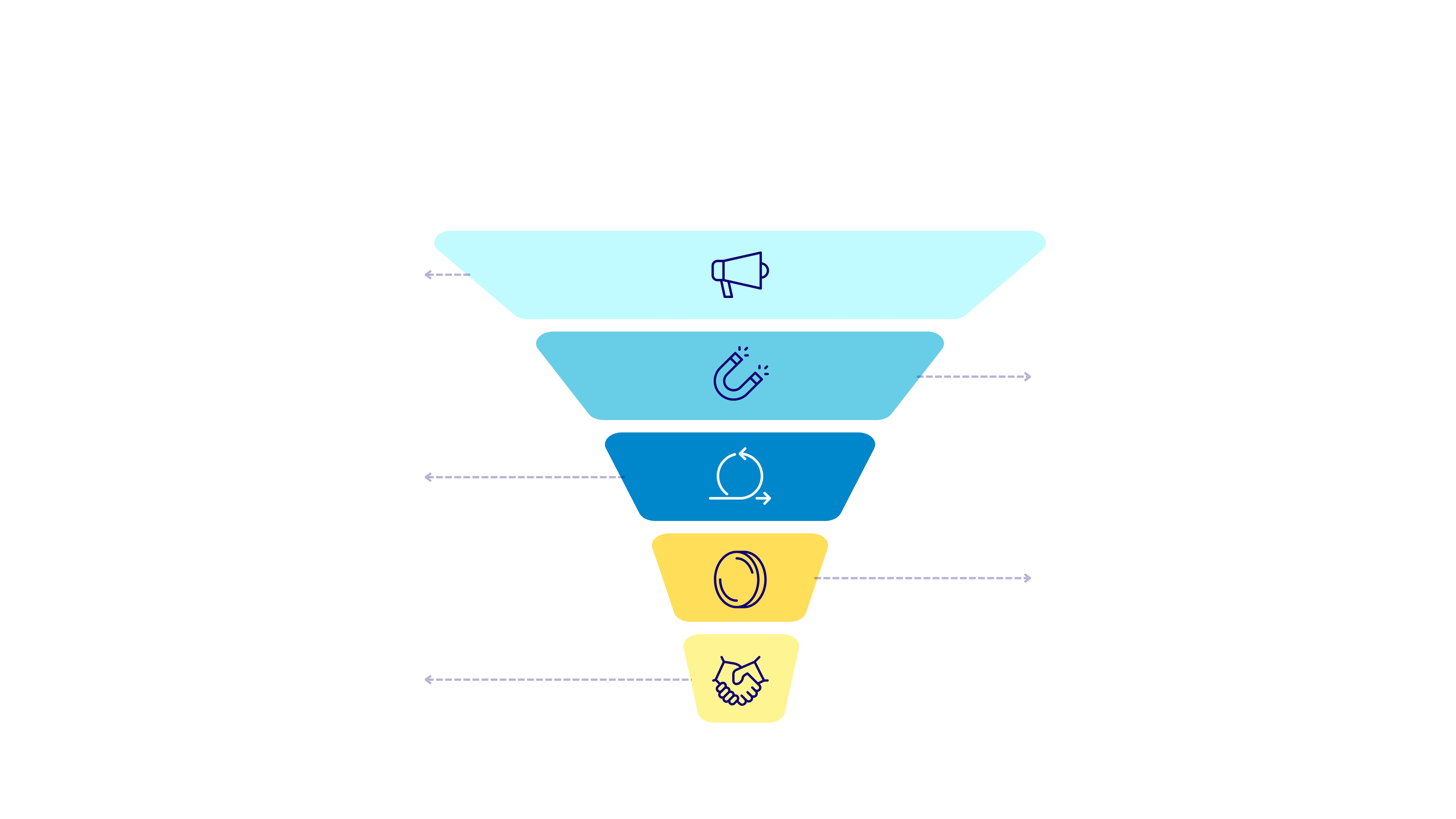
Macro vs. Micro Conversions
Macro conversions are primary actions that directly generate revenue. Micro conversions are smaller steps that indicate intent and help you understand where users are in their journey.
| Site Type | Macro Conversions | Micro Conversions |
|---|---|---|
| E-commerce | Completed purchase, subscription order | Add to cart, wishlist, product view, begin checkout |
| SaaS | Free trial signup, paid plan activation | Pricing page visit, demo request, feature comparison |
| Lead Generation | Contact form submission, quote request | Service page visit, brochure download, click-to-call |
| Content / Media | Newsletter signup, membership registration | Article scroll depth, video play, social share |
| Non-profit | Donation completed, volunteer signup | Campaign page visit, event RSVP |
Track both macro and micro conversions. Micro conversions help you identify problems early. If add-to-cart events stay the same but purchases drop, you know the issue is in the checkout flow — not in product discovery.
How Conversion Tracking Works
Conversion tracking is a chain of steps. If any link breaks, you lose data:
- User performs an action — clicks a button, submits a form, completes a purchase
- An event fires — JavaScript detects the action and pushes data to the data layer
- Tag manager processes it — GTM picks up the event and sends it to the analytics platform
- Analytics platform records it — GA4 receives, processes, and stores the event
- The event appears in reports — you can see the conversion in dashboards
Here is what step 2 looks like in code:
// Push a conversion event to the dataLayer
dataLayer.push({
  event: 'form_submission',
  form_id: 'contact-form',
  form_name: 'Contact Us',
  form_destination: '/thank-you'
});
And sending directly via gtag.js:
// Send a purchase conversion directly
gtag('event', 'purchase', {
  transaction_id: 'TXN_12345',
  value: 99.99,
  currency: 'USD',
  items: [{
    item_id: 'SKU_001',
    item_name: 'Analytics Course',
    price: 99.99,
    quantity: 1
  }]
});
The dataLayer approach (with GTM) is almost always better. GTM gives you version control, preview mode for testing, and the ability to change tags without touching website code.

Setting Up Conversion Tracking
Step 1: Define Your Goal
Be specific. Bad: “Track form submissions.” Good: “Track submissions of the contact form on /contact, triggered when the user sees the thank-you message.”
Step 2: Implement the Event
If the interaction already pushes a dataLayer event, create a Custom Event trigger in GTM. If not, add a dataLayer.push() call or use a GTM trigger based on clicks or element visibility. For form submissions, see How to Track Form Submissions with GTM and GA4.
Step 3: Create the GA4 Event Tag
In GTM: Tags → New → GA4 Event → enter event name → add parameters → set trigger → save.
Step 4: Mark as Conversion in GA4
In GA4: Admin → Events → find your event → toggle “Mark as key event.”
Step 5: Verify
- GTM Preview Mode — confirm the tag fires with correct parameters
- GA4 DebugView — see the event arrive in real time
- GA4 Realtime — confirm events are flowing
- Wait 24-48 hours — check standard reports
If your event fires in Preview mode but not in DebugView, check that the GA Debugger extension is enabled and your measurement ID in GTM matches the property you are checking.

Conversion Rate: What It Means and How to Calculate It
The formula: Conversion Rate = (Conversions / Sessions) × 100
Example: 10,000 sessions, 350 purchases → (350 / 10,000) × 100 = 3.5%. For a deeper look at which metrics matter most, see my dedicated guide.
| Site Type | Average Rate | Good Rate |
|---|---|---|
| E-commerce | 1.5% – 3% | 3% – 5% |
| SaaS (trial signup) | 3% – 5% | 7% – 10% |
| B2B Lead Gen | 2% – 5% | 5% – 8% |
| Landing Pages (paid) | 3% – 6% | 8% – 12% |
| Content (newsletter) | 1% – 3% | 3% – 6% |
Always segment by traffic source, device, landing page, and new vs. returning. A sitewide drop might be a single source pulling the average down.

Why Conversions Drop (and How to Diagnose)
First question: tracking issue or real drop?
- Conversions dropped to zero overnight → almost certainly a tracking issue
- Conversions dropped gradually → likely a real drop, investigate further
| Check | What to Look For | Tool |
|---|---|---|
| Tag firing | Is the conversion tag still firing? | GTM Preview Mode |
| Event arrival | Is the event reaching GA4? | GA4 DebugView |
| Consent mode | Is the banner blocking analytics? | Browser DevTools |
| Page changes | Was the form/checkout updated? | Visual inspection |
| Traffic volume | Did total traffic drop proportionally? | GA4 Traffic Acquisition |
| Traffic quality | Did the source mix change? | GA4 Source/Medium |
| Site speed | Did load times increase? | PageSpeed Insights |
Keep a changelog. Log every GTM publish, site update, and campaign change with the date. When conversions drop, check what changed around that time.
Common Conversion Tracking Mistakes
- Counting page loads as conversions. If the event fires on thank-you page load, refreshes and bookmarks create duplicates. Fire based on the actual submission, not the page load.
- Not deduplicating transactions. Always include a unique transaction ID with purchase events. Without it, a single purchase can be counted multiple times. See e-commerce tracking setup for details.
- Tracking too many conversions. If everything is a conversion, nothing is. Mark only events that directly map to business outcomes.
- Ignoring consent mode impact. Many users decline cookies. GA4’s consent mode with modeling helps, but your numbers are estimates, not complete counts.
- Not testing after changes. Every site update, form plugin change, or GTM publish can break tracking silently.
- Mismatched attribution windows. GA4 and Google Ads use different defaults. Align settings before comparing numbers.
- Not assigning conversion values. Without values, you cannot calculate ROI. Even for non-e-commerce, assign estimated values (e.g., a lead worth $50).
Wrap-Up
Conversion tracking is not “set it and forget it.” It requires clear definitions, proper implementation, thorough testing, and ongoing maintenance. Get the fundamentals right and you will have data you can actually trust.
Frequently Asked Questions
What is the difference between a conversion and an event in GA4?
Every user interaction is an event. A conversion (key event) is an event you have marked as important. All conversions are events, but not all events are conversions. You choose which to mark based on business goals.
How many conversions should I track?
Three to five key conversions per property. Track additional interactions as regular events. If your conversion report has 20 types, it becomes impossible to prioritize.
Why do GA4 and Google Ads conversion numbers not match?
Different attribution models, windows, and counting methods. GA4 uses data-driven or last-click with 30-day window. Google Ads can use up to 90 days. Some discrepancy is normal and expected.
Can I track conversions without Google Tag Manager?
Yes, with gtag.js directly in your code. But I do not recommend it for most setups — you lose preview/debug capabilities, version history, and the ability to make changes without a developer.

Need Help With Your Analytics Setup?
Whether you are implementing GA4, setting up consent management, or building custom tracking solutions, I can help you get it right the first time.