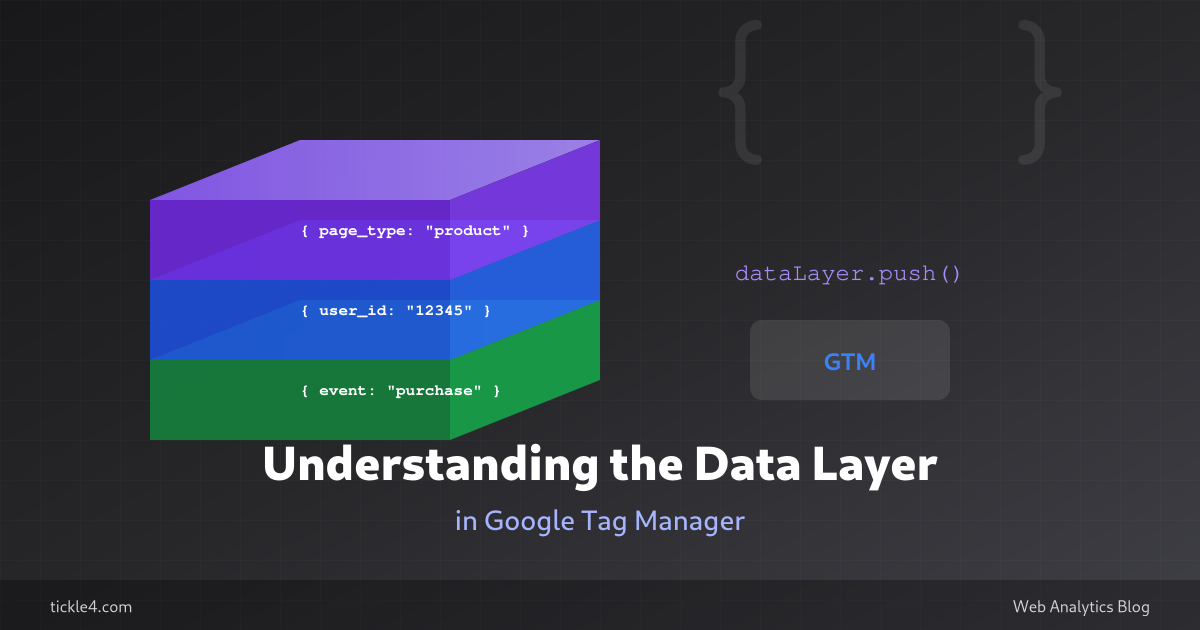
The data layer is one of the most important concepts in Google Tag Manager. If you understand it well, you can track almost anything. This guide explains what the data layer is, how it works, and how to use it effectively.
TL;DR – Quick Summary
- The data layer is a JavaScript array that passes data from your site to GTM
- Initialize it before GTM loads:
window.dataLayer = window.dataLayer || []; - Always include an
eventkey when you want GTM to react - Use Data Layer Variables in GTM to read pushed values
- Debug with browser console or GTM Preview mode
What You Will Learn
- What the data layer is and why it matters
- How to push data to the data layer
- How to read data layer values in GTM
- Common patterns and best practices
What Is the Data Layer?
The data layer is a JavaScript array that acts as a bridge between your website and Google Tag Manager. It allows you to pass structured information from your site to GTM, where you can use it in tags, triggers, and variables.
Think of it as a mailbox. Your website puts messages in the mailbox (data layer), and GTM picks them up and acts on them.
Why You Need It
Without a data layer, GTM can only access information visible in the DOM or URL. This is often not enough. For example:
- User ID after login
- Product details on a page
- Cart value
- Form submission results
- Custom business data
The data layer gives you a reliable way to pass this information to GTM.
How to Initialize the Data Layer
GTM creates the data layer automatically. However, if you want to push data before GTM loads, you should initialize it first:
<script>
  window.dataLayer = window.dataLayer || [];
</script>
Place this code before the GTM container snippet. This ensures the data layer exists before any data is pushed to it.
How to Push Data
Use the dataLayer.push() method to add data:
dataLayer.push({
  event: "user_login",
  user_id: "12345",
  user_type: "premium"
});
Always include an event key if you want GTM to react immediately. Without an event, the data is stored but no trigger fires.
How to Read Data in GTM
To access data layer values in GTM, create a Data Layer Variable:
- Go to GTM → Variables → New
- Choose Data Layer Variable
- Enter the variable name (e.g.,
user_id) - Save
For nested data, use dot notation: ecommerce.items.0.item_name
Now you can use this variable in tags and triggers.
Creating a Custom Event Trigger
When you push an event to the data layer, you can create a trigger that fires when that event occurs:
- Go to GTM → Triggers → New
- Choose Custom Event
- Enter the event name exactly as you pushed it (e.g.,
user_login) - Save
Event names are case-sensitive. user_login and User_Login are different events.
Common Patterns
Pattern 1: Page-Level Data on Load
Push page information before GTM loads:
<script>
  window.dataLayer = window.dataLayer || [];
  dataLayer.push({
    page_type: "product",
    product_id: "SKU123",
    product_category: "Electronics"
  });
</script>
<!-- GTM snippet here -->
Pattern 2: User Interaction Events
Push events when users take actions:
document.getElementById("signup-btn").addEventListener("click", function() {
  dataLayer.push({
    event: "signup_click",
    button_location: "header"
  });
});
Pattern 3: Clearing Previous Data
For e-commerce events, always clear the ecommerce object before pushing new data. This prevents old data from contaminating new events.
dataLayer.push({ ecommerce: null });
dataLayer.push({
  event: "view_item",
  ecommerce: { ... }
});
Debugging the Data Layer
To verify your data layer is working:
- Browser console: Type
dataLayerin the console to see all pushed data - GTM Preview mode: Shows each data layer push and the values available at that moment
- Data Layer Inspector extension: A browser extension that visualizes data layer pushes in real-time
If your variable shows undefined in GTM, check the timing. The data might be pushed after your tag fires.
Common Mistakes
- Pushing data after GTM loads without an event (data is stored but nothing happens)
- Using wrong variable names in GTM (typos, wrong case)
- Not initializing the data layer before pushing data
- Forgetting that the data layer is cumulative (old values persist)
Wrap-Up
The data layer is essential for advanced tracking. It lets you pass any information from your website to GTM in a structured way. Remember: initialize it early, always include an event key for interactions, and use Preview mode to debug. Once you master the data layer, you can track virtually anything.

Need Help With Your Analytics Setup?
Whether you are implementing GA4, setting up consent management, or building custom tracking solutions, I can help you get it right the first time.