
If your website has visitors from the EU, you need to handle cookie consent properly. This guide shows you how to set up GA4 tracking that respects user consent choices. It is not legal advice, but it covers the technical implementation.
- Set default consent to “denied” before GTM loads
- Use a CMP (Cookiebot, OneTrust, etc.) to manage user consent
- Update consent state when users make their choice
- Configure GA4 tags in GTM to respect consent settings
- Test all scenarios: new visitor, accept, and reject
What You Will Learn
- Why consent matters for GA4
- How Google Consent Mode works
- How to implement consent-based tracking in GTM
- How to verify your setup respects consent
Why This Matters
Cookie consent directly affects your web analytics data quality. If you are setting up analytics for the first time, read our guide on tag managers and event-based analytics to understand how consent mode fits into the tracking stack.
Under GDPR, you cannot set analytics cookies or collect personal data before the user gives consent. If you fire GA4 immediately on page load without consent, you may be violating privacy regulations.
Google provides a solution called Consent Mode that lets GA4 work in a privacy-compliant way.
Understanding Google Consent Mode
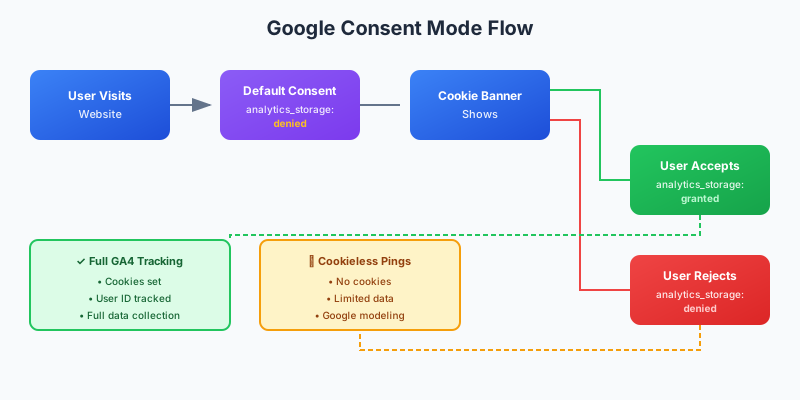
Consent Mode is a feature that adjusts how Google tags behave based on user consent. It has two main consent types:
- analytics_storage: Controls whether GA4 can use cookies for analytics
- ad_storage: Controls whether Google Ads can use cookies for advertising
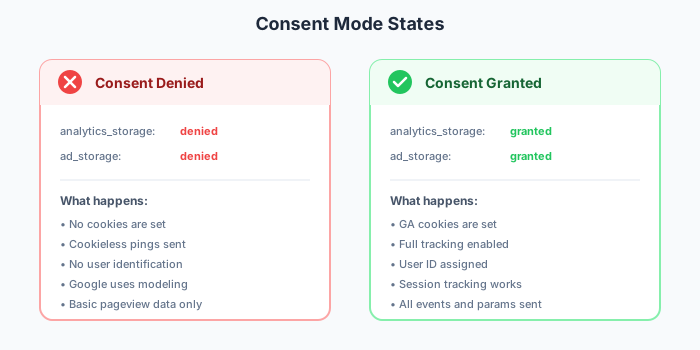
When consent is denied, GA4 still sends data but without cookies and with limited information. This is called “cookieless pings.” Google uses modeling to fill in gaps.
Prerequisites
- Google Tag Manager installed
- A Consent Management Platform (CMP) like Cookiebot, OneTrust, or CookieYes
- GA4 property created
Step 1: Set Default Consent State
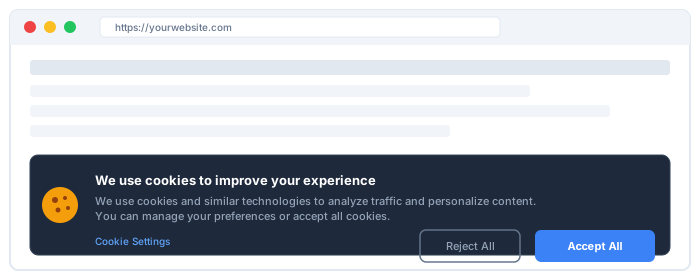
First, set the default consent state before any tags fire. This should happen before GTM loads.
<script>
  window.dataLayer = window.dataLayer || [];
  function gtag(){dataLayer.push(arguments);}

  gtag("consent", "default", {
    analytics_storage: "denied",
    ad_storage: "denied",
    wait_for_update: 500
  });
</script>
<!-- GTM snippet here -->
The wait_for_update parameter tells Google tags to wait up to 500ms for a consent update. This gives your CMP time to load and update consent. Do not skip this parameter.
Step 2: Update Consent When User Chooses
When the user accepts or rejects cookies, your CMP should update the consent state:
// When user accepts analytics cookies
gtag("consent", "update", {
  analytics_storage: "granted"
});

// When user accepts all cookies
gtag("consent", "update", {
  analytics_storage: "granted",
  ad_storage: "granted"
});
Most CMPs have built-in integrations for Google Consent Mode. Check your CMP documentation – you might not need to write any code.
Step 3: Configure GTM for Consent Mode
In GTM, you need to enable Consent Mode and configure your tags.
Enable Consent Overview
- Go to GTM → Admin → Container Settings
- Check “Enable consent overview”
- Save
Configure GA4 Tag Consent Settings
- Open your GA4 Configuration tag
- Go to Advanced Settings → Consent Settings
- Select “Require additional consent for tag to fire”
- Add
analytics_storage - Save
Now your GA4 tag will only fire fully when analytics_storage is granted. When denied, it sends limited cookieless pings.
Alternative: Block Tags Until Consent
If you want to completely block GA4 until consent is given (no cookieless pings), use a different approach:
- Create a trigger that fires only when consent is granted
- Your CMP should push an event to the data layer when consent changes
- Use this event as a trigger condition
For example, if your CMP pushes cookie_consent_given:
dataLayer.push({
  event: "cookie_consent_given",
  consent_analytics: true
});
Then create a Custom Event trigger for cookie_consent_given and attach it to your GA4 tag instead of All Pages.
Step 4: Test Your Implementation
Testing consent implementations requires checking multiple scenarios:
Scenario 1: New Visitor (No Consent Yet)
- Clear cookies and visit your site
- Open GTM Preview mode
- Check: GA4 tag should fire but with consent denied
- Check browser: No GA cookies should be set
Scenario 2: User Accepts Cookies
- Click accept on the cookie banner
- Check GTM: A consent update event should appear
- Check browser: GA cookies should now exist
- Navigate to another page: GA4 should fire normally
Scenario 3: User Rejects Cookies
- Clear cookies and visit your site
- Reject cookies on the banner
- Check: No GA cookies should be set
- Check GA4 DebugView: You might still see cookieless pings (depending on setup)
Common CMP Integrations
Cookiebot
Cookiebot has built-in Google Consent Mode support. Enable it in your Cookiebot settings and it will automatically handle consent updates.
OneTrust
OneTrust provides a Google Consent Mode template. Configure the mapping between your consent categories and Google consent types.
Custom Implementation
If you use a custom consent solution, you need to call gtag("consent", "update", ...) yourself when the user makes a choice.
Common Mistakes
- Not setting default consent state before GTM loads
- Forgetting to update consent when user makes a choice
- Not testing with cleared cookies
- Assuming consent is remembered across sessions (check your CMP settings)
- Using All Pages trigger without consent conditions
Wrap-Up
GDPR-compliant GA4 tracking requires three things: setting a default denied consent state, updating consent when the user chooses, and configuring your GA4 tags to respect consent. Google Consent Mode makes this easier by handling the technical details. Test all scenarios before going live, and remember that this guide covers implementation, not legal compliance. Consult a privacy professional for legal requirements in your jurisdiction.

Need Help With Your Analytics Setup?
Whether you are implementing GA4, setting up consent management, or building custom tracking solutions, I can help you get it right the first time.