A tag in Google Tag Manager does nothing on its own. It sits in the container until a trigger tells it to fire, and most tracking problems people bring to me are trigger problems wearing a tag costume. The tag is fine. It is listening for something that never happens, or something that happens at the wrong moment.
This guide covers what each trigger type actually listens for, which one to reach for in the common cases, and why firing order breaks setups that look correct in the interface.
What a trigger is listening for
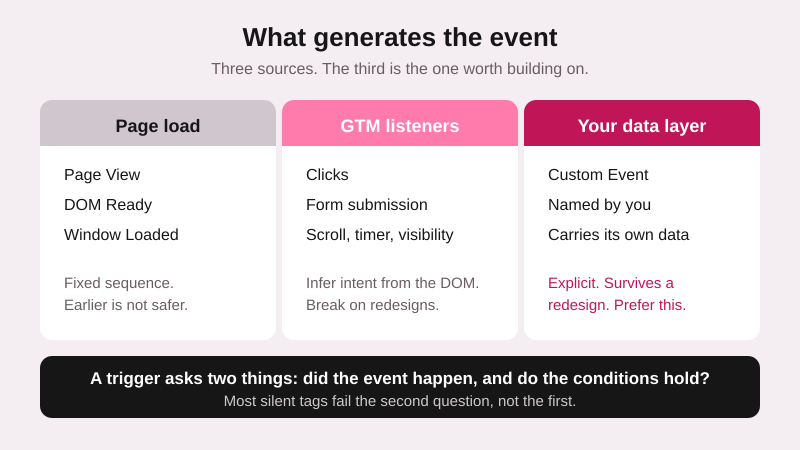
Every trigger watches for one thing and asks one question: did the event I care about just happen, and do the conditions attached to it hold? Both halves matter. A trigger with the right event type and a wrong condition is the most common reason a tag stays silent.
The events themselves come from two places. Some are generated by GTM’s own listeners — clicks, form submissions, scrolls, timers. Others arrive because your site pushed them into the data layer deliberately. If you have not worked with the second kind, my guide to the data layer in Google Tag Manager covers how those pushes work.
The trigger types worth knowing
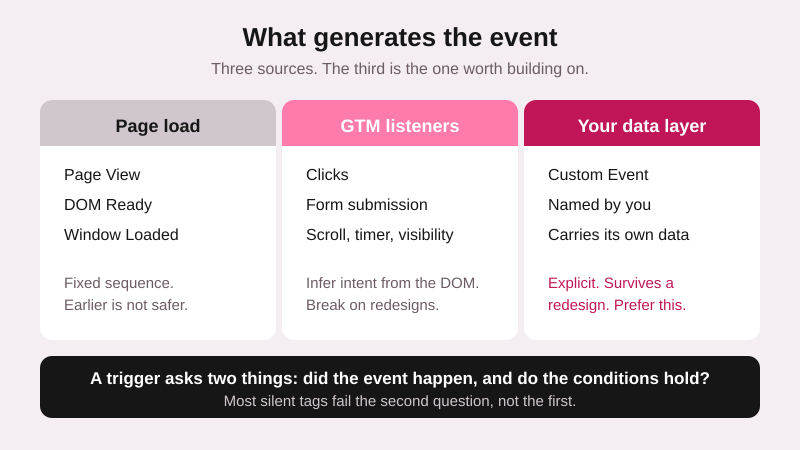
GTM ships more trigger types than most containers ever need. These are the ones that cover almost every real requirement.
| Trigger | Fires when | Reach for it when | Watch out for |
|---|---|---|---|
| Page View | The GTM container loads | Base tags that must run everywhere | Fires before the page finishes rendering — DOM elements may not exist yet |
| DOM Ready | The HTML is parsed | Anything that reads an element on the page | Content injected later by JavaScript is still missing |
| Window Loaded | Images and scripts have finished | Tags that need the fully rendered page | Can be seconds after the visitor arrived; some leave before it |
| Click — All Elements | Any click anywhere | Diagnosing what a click actually looks like | Noisy in production. Use for debugging, then narrow it |
| Click — Just Links | A click on an anchor | Outbound links, downloads, mailto | Needs “wait for tags” if the click leaves the page |
| Form Submission | A native form submit event | Classic HTML forms | Silent with most JavaScript form plugins — they never emit it |
| Scroll Depth | The visitor passes a threshold | Content engagement | Long pages fire every threshold in one fast scroll |
| Element Visibility | An element enters the viewport | Anything rendered late, or forms that fail the submit listener | Choose carefully between “once per page” and “every time” |
| Custom Event | Your site pushes a named event | Everything a developer can instrument | The name must match the push exactly, casing included |
| History Change | The URL changes without a reload | Single-page applications | Fires on hash changes too, which is rarely what you want |
Two entries deserve extra attention because they cause most of the support questions I get.
Form Submission is unreliable on modern sites. It listens for the browser’s native submit event, and most form plugins intercept the submission in JavaScript and never emit one. When a form tracking setup fires in Preview but produces nothing in production, this is usually why. Element Visibility on the thank-you message is the fallback that works almost everywhere, and I walk through both approaches in my guide to tracking form submissions with GTM and GA4.
Custom Event is the one to prefer when you can. Browser-listener triggers infer intent from the DOM, which means they break when a developer renames a class. A custom event pushed by your site is explicit, survives redesigns, and carries whatever data you attach to it. The cost is that somebody has to add the push.
Firing order, and why it breaks working setups
Page-load triggers happen in a fixed sequence, and a tag attached to the wrong point in that sequence fails in ways that look random.
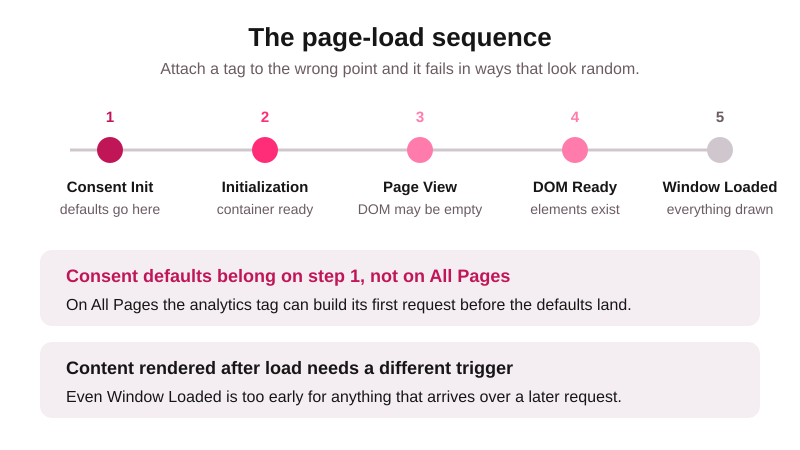
Consent Initialization runs first, ahead of everything else, which is exactly why default consent states belong there rather than on All Pages. Attach them to All Pages and your analytics tag can build its first request before the defaults land — the setup passes a visual check and fails in the data.
The rest follows in order: Initialization, then Page View, then DOM Ready, then Window Loaded. A tag that reads a price from the page needs DOM Ready at the earliest. A tag that reads something rendered by a framework after load needs Element Visibility or a custom event, because even Window Loaded can be too early for content that arrives over a later request.
Conditions: where the tag goes quiet
Once the event type is right, the conditions decide whether anything happens. Four mistakes account for nearly every silent tag I have debugged.
- Page Path against a full URL. Page Path holds
/pricing/, nothttps://example.com/pricing/. Comparing it to a full address matches nothing, and GTM will not warn you. - “Equals” where “contains” was meant. A trailing slash, a query string or an uppercase character is enough to fail an equals condition. Query parameters break more of these than anything else.
- Click variables switched off. Built-in click variables are disabled by default in a new container. A trigger built on Click Classes matches nothing until they are enabled in the Variables panel.
- Case sensitivity in custom events.
addToCartandadd_to_cartare different events. This one hides well, because the data layer push looks correct in the console.
Preview mode settles all four in under a minute. Load the page, perform the action, and read the event stream on the left: if your event is not there, the trigger type is wrong; if it is there but the tag did not fire, the conditions are wrong. That split tells you which half to fix, and it is the same reasoning I use in my walkthrough of testing your tracking in DebugView.
Choosing without overthinking it
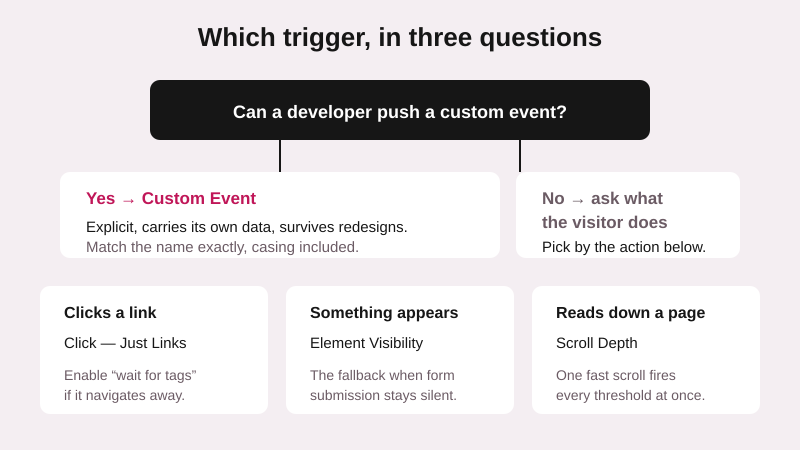
Ask whether a developer can push a custom event. If yes, take it — explicit beats inferred every time, and the tracking survives the next redesign.
If not, ask what the visitor physically does. A click on a link points at Click — Just Links. Something appearing on screen points at Element Visibility. Reaching a point in a long article points at Scroll Depth, which I cover in more detail in the scroll depth guide.
And if the answer is “the page simply loaded”, pick the latest point in the sequence that still guarantees your data exists. Earlier is not safer — it is just earlier.
Common questions
Why does my tag fire in Preview but not in production?
Preview mode holds the page open and gives listeners time that a real visit does not. The usual culprits are a click trigger that navigates away before the tag completes — enable “wait for tags” — or a consent tool that blocks the tag for real visitors while your own session is already consented.
Can one tag have several triggers?
Yes, and the tag fires when any of them matches. That is useful for a tag which should run on both a form submission and a thank-you page view. Be careful with duplicates: two triggers that both match the same action will fire the tag twice, and the second hit is indistinguishable from real data.
What is a blocking trigger?
An exception attached to a tag that prevents it from firing even when a firing trigger matches. It is the clean way to exclude internal traffic, staging hostnames or a specific campaign, and it beats adding negative conditions to every trigger you own.
Should tracking live in triggers or in the data layer?
Put the meaning in the data layer and the routing in triggers. When the site announces what happened and GTM decides who hears about it, a redesign breaks the styling rather than the measurement. Trigger conditions built on CSS classes are the ones that quietly stop matching.
Where to look first when nothing fires
Open Preview, do the thing, and check whether your event appears in the stream at all. That one observation separates a wrong trigger type from a wrong condition, and it saves the half hour most people spend rebuilding a trigger that was already correct.

Need Help With Your Analytics Setup?
Whether you are implementing GA4, setting up consent management, or building custom tracking solutions, I can help you get it right the first time.